





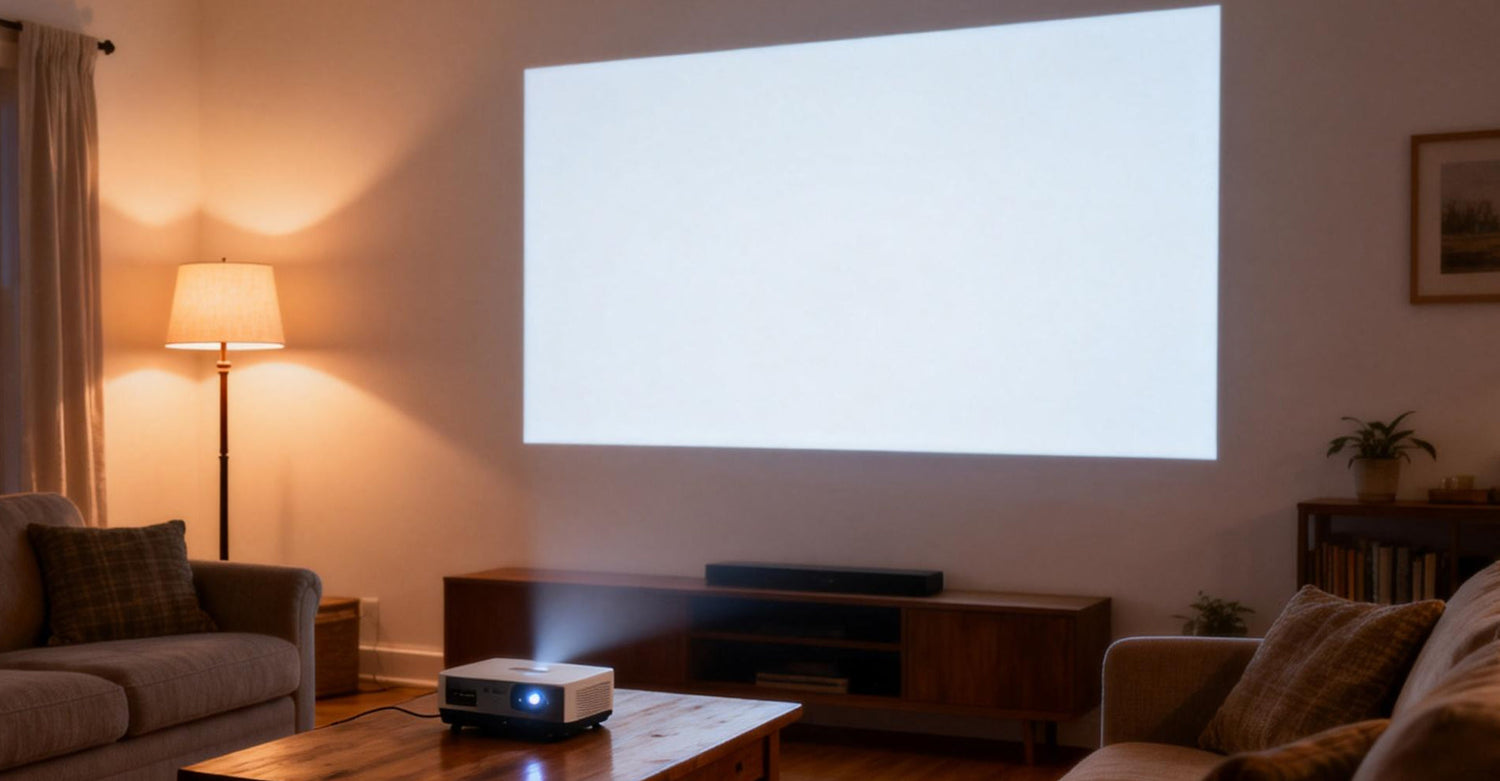
Have you ever dimmed the lights, grabbed the popcorn, and hit "Power," only to be met with a soul-crushing Projector No Signal message? Or perhaps the fan is whirring, but you are staring at a persistent blank screen.
Projector display problems are among the most frustrating tech issues because they involve a complex "handshake" between your source, your cable, and the light engine. If you are wondering why is my projector not working, this guide provides a professional-grade walkthrough to diagnose everything from a 5-second fix to advanced projector repair needs.
1. Decoding the Display: What Your Projector is Telling You
Identifying the specific "flavor" of your projector problem is the fastest way to solve it. Here is how to interpret the visual cues and take immediate action:
The "No Signal" Screen
The projector is functional but cannot "hear" your device.
Action: Verify the HDMI seating or toggle the "Source" button to refresh the search.
The Projector Black Screen (No Light from Lens)
The unit might be in a deep sleep, or the light source has failed.
Action: Look at the vents. If you see internal light leaking out but nothing on the wall, double-check for a physical lens shutter.
Audio but No Video
A classic sign of a "security mismatch" known as HDCP.
Action: Disconnect any HDMI splitters and connect your source directly to the projector.
2. The "First Response" Checklist: Professional Quick Checks
Before assuming a hardware failure, verify these environmental factors that often cause projector picture problems:
The "Blank" Button Trap
Many remotes have a "Blank" or "A/V Mute" button. One accidental press results in a total loss of image while keeping the unit running. Press it once to "unhide" the display.
Throw Distance & Focus
Is your projector too close to the wall? If the lens is physically outside its focus range, the image might be so blurry it appears invisible.
Cool-Down Cycles
If you recently turned the projector off, many units won't allow the lamp to strike again until the cooling cycle is complete.
Indicator Light Codes
Solid red lights usually signal thermal shutdown, while flashing lights may point to lamp life expiration.

3. Resolving Connectivity & Resolution Conflicts
Most problems with projectors stem from the digital "handshake" between devices.
The HDCP & Handshake Factor
Information Gain: Digital content (Netflix, HBO, etc.) is encrypted via HDCP. If you are using a cheap adapter, the security handshake will fail, often leaving you stuck with a Projector No Signal error even when the cable is plugged in. Always use "Active" powered adapters for mobile devices.
Output Device Configuration
Windows (Win + P): Ensure your laptop is set to "Duplicate" or "Extend."
The Refresh Rate Mismatch: If your PC outputs 120Hz but your projector only supports 60Hz, you will be stuck with a black screen. Manually set your laptop’s refresh rate to 60Hz in display settings.
4. Troubleshooting Projector Audio and Smart Systems
When projector sound not working occurs alongside a black screen, it usually points to a software or format conflict.
Audio Format Mismatch
Most projectors cannot decode "Dolby Digital Plus." If you have video but no sound, change the Audio Output in your settings to "PCM" or "Stereo."
Smart OS Freeze
For Android-based projectors, a system crash can cause the display engine to hang. A Hard Reset (unplugging the power for 60 seconds) forces the OS to reload the display drivers—a common fix for a projector not working after a software glitch.
5. Advanced Diagnosis: When is it Hardware Failure?
If you've swapped cables and checked settings, you might be facing internal projector display problems:
Thermal Protection
If the projector shuts off after exactly 5–10 minutes, vacuum the dust filters and ensure there is at least 12 inches of clearance around the vents.
Optical Engine Damage
If you see "stars" or vertical lines, the DLP chip or LCD panel is failing. At this stage, a professional projector repair is necessary.
EDID Corruption
If your computer suddenly doesn't recognize the projector's name, the "Identity Chip" in the projector may be glitched. A system-level Factory Reset is the only way to clear this.
6. Final 60-Second Troubleshooting Checklist
|
If you see... |
The likely cause is... |
Immediate Fix |
|
No Signal Message |
Wrong Input / Loose Cable |
Re-seat HDMI; Press "Source" |
|
Sudden Black Screen |
Lens Cap / Blank Mode |
Remove cap; Press "Blank" on remote |
|
Flickering Image |
Low Bandwidth Cable |
Swap for a certified 4K HDMI cable |
|
Audio OK, Video Black |
HDCP / DRM Error |
Remove HDMI splitters/converters |
|
Shuts off after 5 mins |
Overheating |
Clean air filters; check fan airflow |

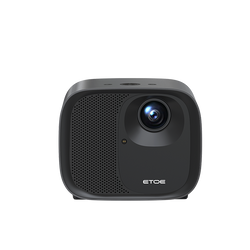
7. The Ultimate Solution: Why ETOE is the Stress-Free Choice
If you are tired of dealing with constant problems with projectors and expensive repair bills, it’s time to switch to a brand built for reliability.
ETOE Projectors are engineered to eliminate the common display headaches through superior build quality:
- 2-Year Warranty Protection: While most brands offer only 12 months, ETOE doubles it, providing long-term peace of mind.
- Exceptional Customer Service: If you ever encounter projector display problems, their responsive team provides genuine human support to get your movie night back on track.
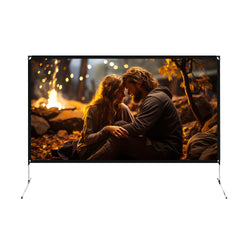
- Precision Bundles: ETOE offers Projector + Screen bundles. This removes the guesswork—you get a professional-grade screen perfectly matched to the projector's brightness, ensuring a flawless image without the struggle of manual selection.

Still struggling with your setup? Don't let tech hurdles ruin your evening. Leave a comment below with your model name and status light colors, and our experts will help you troubleshoot!

Leave a comment
This site is protected by hCaptcha and the hCaptcha Privacy Policy and Terms of Service apply.